What’s Next: 4 WebDev Features Defining Modern Development
Web APIs are evolving every day. At the end of summer, I wanted to focus on four new (or not-so-new) features to test, experiment with, or follow in the coming months.
Baseline integration in VS Code
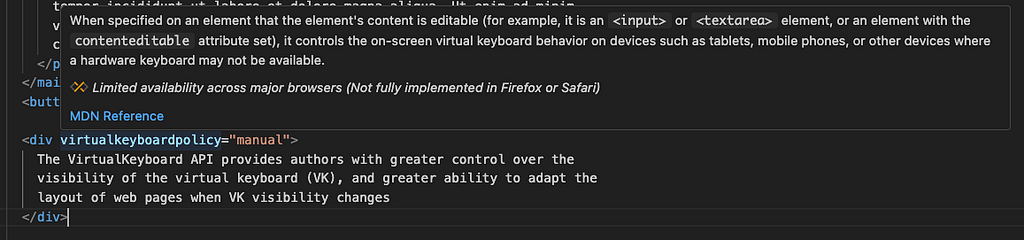
A feature I hadn’t noticed until a few days ago: most IDEs don’t display whether HTML or CSS functionalities/APIs are baseline, experimental, or since when. Introduced in may 2025, VS Code now shows a pop-up indicating, for example, that margin-inline has been a baseline feature since 2021.

I think it’s pretty cool. When you want to use a new feature you discovered in a video or at a conference, there’s no need to open a new page to check it. A small popup gives you this information instantly.
The best part is that you can combine this with ESLint rules for both HTML and CSS:
https://github.com/eslint/css/blob/main/docs/rules/use-baseline.md
This is very useful when a junior developer joins a project and tries to reuse new features they learned at school but you are in a legacy codebase or having constraints on device compatibility. The rule can accept a state (newlyfor features in at least the last stable version | widelyfor features baseline for at least 2.5 years) or a year if you only want older features depending on your project’s context. Like all ESLint rules, you can treat violations as errors or warnings.
Example: If I want to support older devices and only allow features that were baseline as of 2020 :
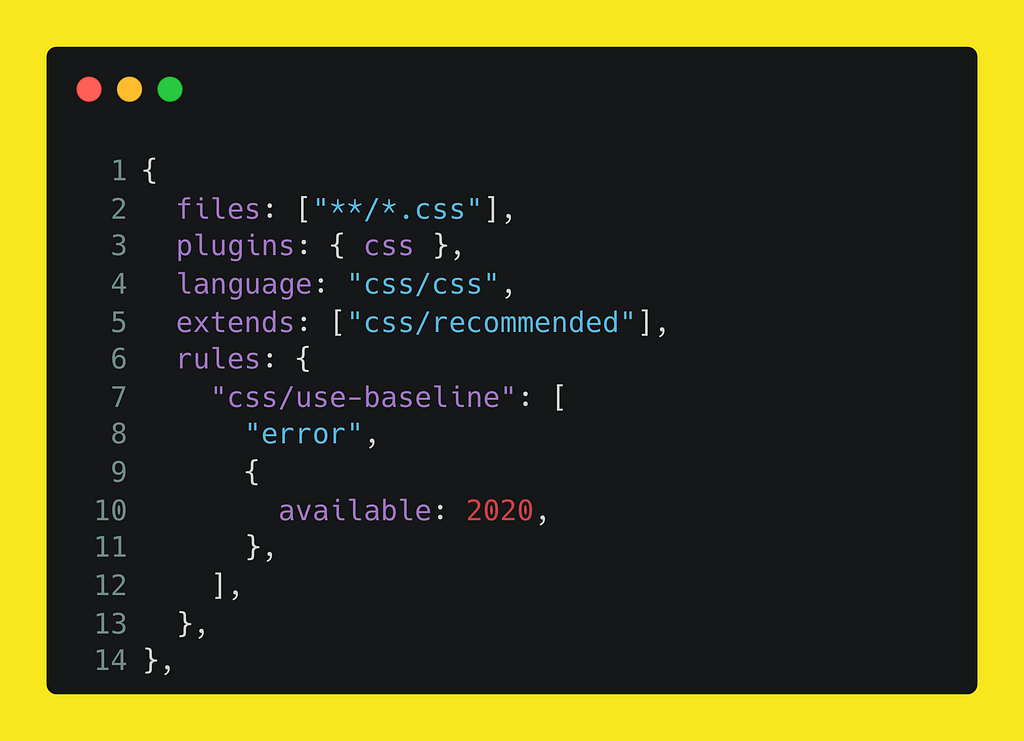
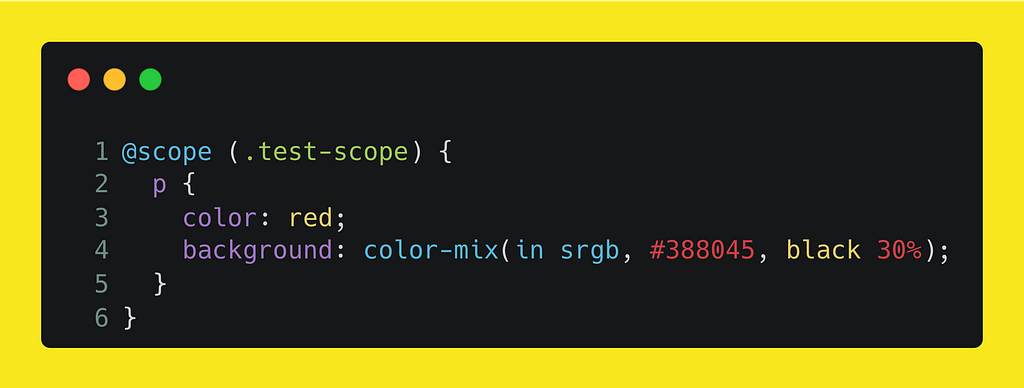
I will use some advanced features like color-mix , scope() query and the margin-inline I showed above:
styles.css
  44:3   error  Property 'margin-inline' is not a 2020 available baseline feature  css/use-baseline
  52:1   error  At-rule '@scope' is not a 2020 available baseline feature          css/use-baseline
  55:17  error  Type 'color-mix' is not a 2020 available baseline feature          css/use-baseline
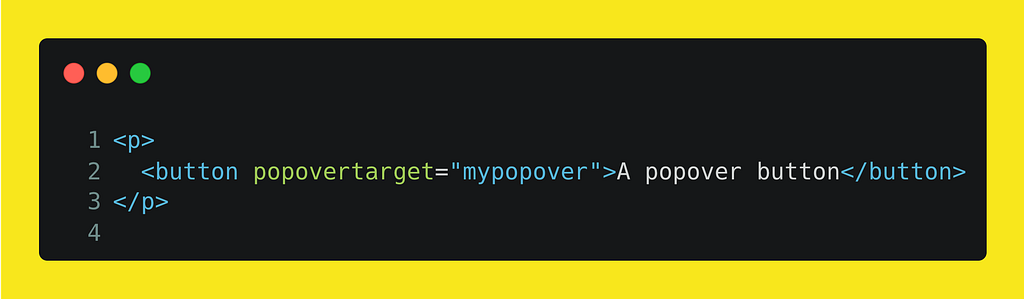
Same thing for HTML:
index.html
  27:15  error  Attribute 'popovertarget' on '<button>' is not a widely available baseline feature  html/use-baseline
Now you can connect this to your Git hooks or your CI/CD checks and avoid compatibility issues in production.
CSS Anchor
Before CSS anchors were available, positioning one element relative to another required manual workarounds. Developers had to rely on CSS tricks or even JavaScript for advanced calculations. CSS Anchoring introduces a native way to define positioning relationships between elements, removing much of this complexity.
Core Concepts
Anchoring involves two main elements:
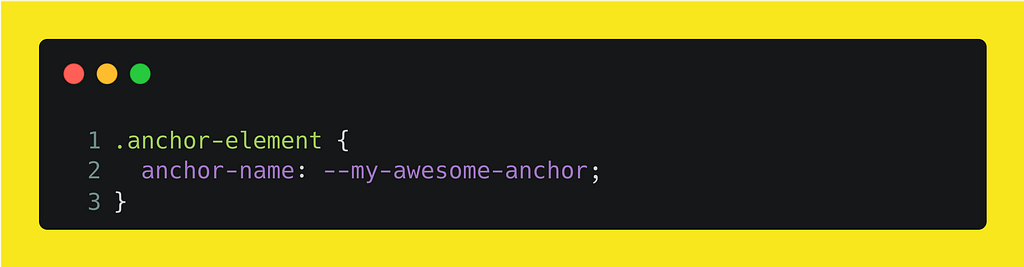
- Anchor element: The reference element used as the basis for positioning, defined with the anchor property
- Positioned element: The element placed relative to the anchor
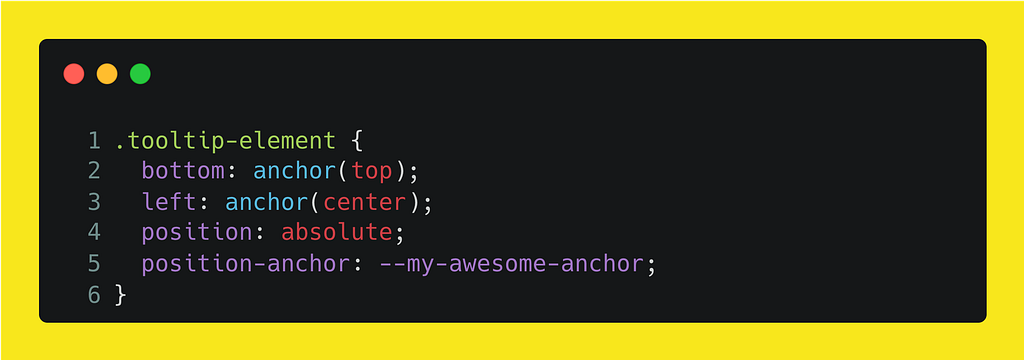
- Don’t forget to set you element as position absolute
- To reference what anchor you are related to, you have two ways:
- Use the position-anchor attribute to set one anchor for all the further positioning (called as implicit anchor)
- Name the anchor and use the anchor() function (called as explicit anchor)
bottom: anchor(--my-awesome-anchor top);3. Define where you want to place your element, always think in this order :
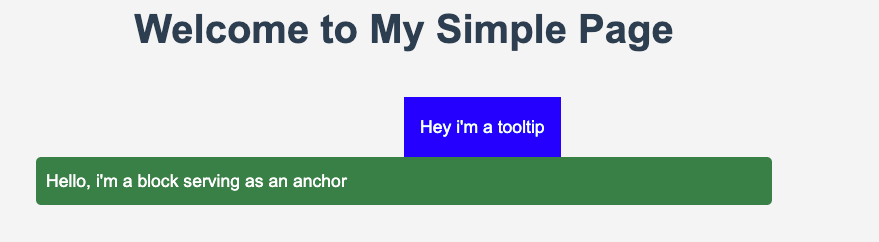
I want to place this part (bottom in the example bellow) of my element relative to my anchor (top in the example bellow)
And here is how your quick sample will look like:
A quick reminder of elements edges

Example of common use cases
- Tooltips
- Context menus and dropdown menus
- Popovers
Positioning Model
To set the element’s position you can use logical or physical values (Logical vs. Physical Properties).
A positioned element can be aligned relative to its anchor in two main ways:
- Absolute positioning — fine-grained control by aligning edges or corners of the anchor with edges of the element’s box (as we saw in previous example).
- Position areas — simplified placement using predefined areas that use a grid display with an anchor in the center.
Easily center the element — you can use the value anchor-center in properties you are used to using with flex/grid (justify-self / align-self / justify-items / align-items).
Advanced Features
- Multiple anchors: An element can be positioned relative to more than one anchor (e.g. centered between two anchors).
left: anchor(--my-awesome-anchor-one right);
right: anchor(--my-awesome-anchor-two left);- Visibility handling: A positioned element’s visibility can respond to the visibility state of its anchor. With the property position-visibility you can manage your element’s behavior based on the anchor visibility
- Fallback positions: Alternative placement strategies can be defined to handle dynamic changes on the page. In other terms, you can create a fallback that the browser will use if your positioned element overflows the containing block or the viewport (responding to scroll, resize, larger block, for example).
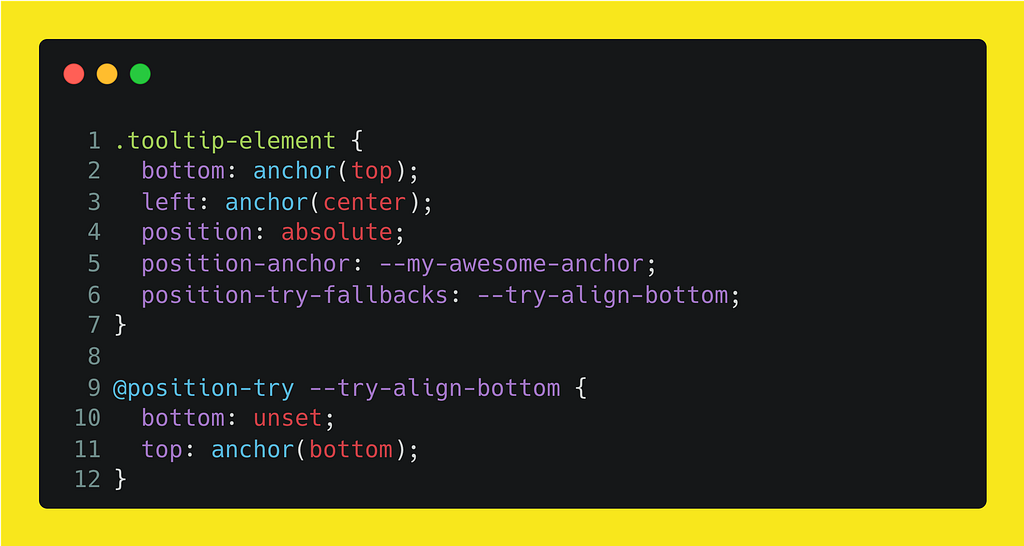
Like the keyframes, you declare a position-tryelement with your custom name, and the styles that would be applied, and then in your positioned element you reference it with position-try-fallbacks. In this case, if I scroll vertically and the positioned element disappears, it falls back to positioning itself at the bottom of the anchor.
Bonus: for simple cases, you can use position-try-fallbacks with native value for flipping the element.
It’s a whole new world with the Anchor Positioning API, right? 😀
Picture-in-Picture API
You’ve probably seen on some websites a small video thumbnail that remains visible while you navigate between pages. Depending on the implementation, this is often achieved with JavaScript scripts or CSS workarounds.
In the near future, this will be handled natively through the new browser API called **Picture-in-Picture (PiP)**.
Here is a quick showcase to demonstrate how easy it will be to use it.
So, I have this small piece of template:
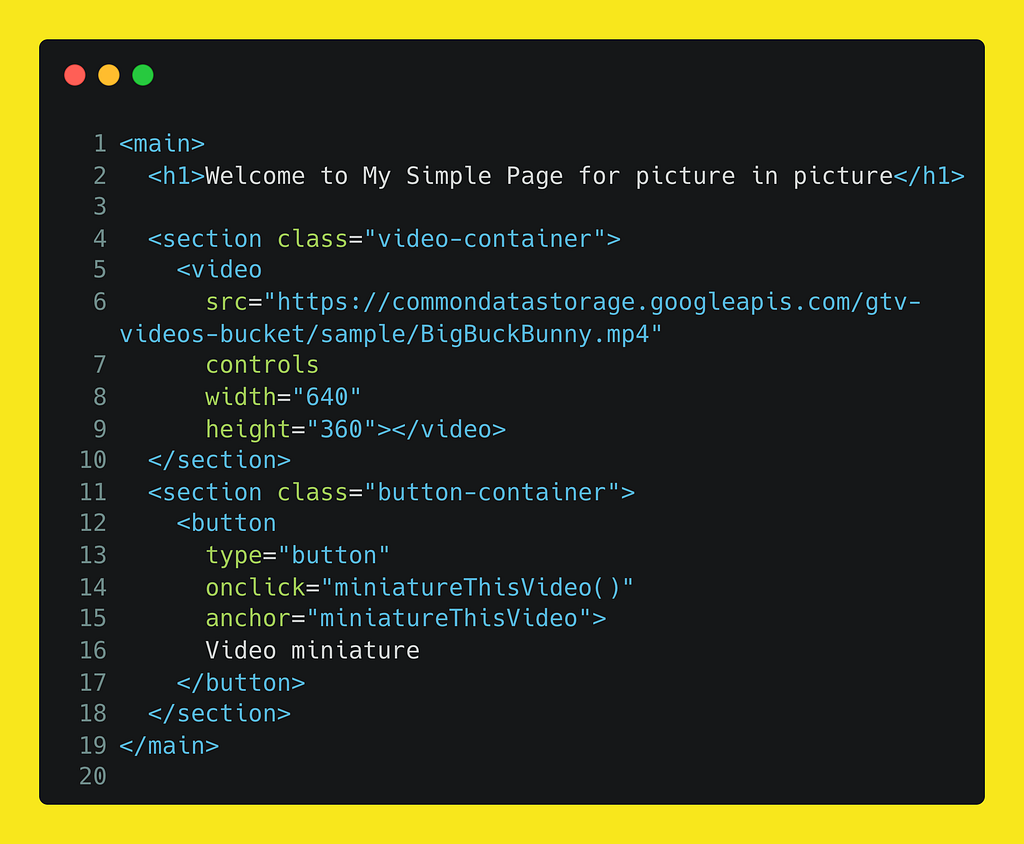
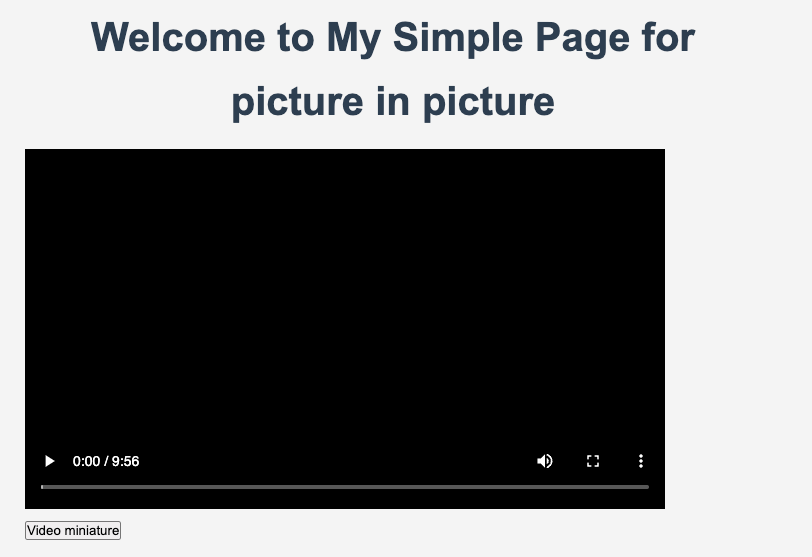
And the method bind to the button’s click:
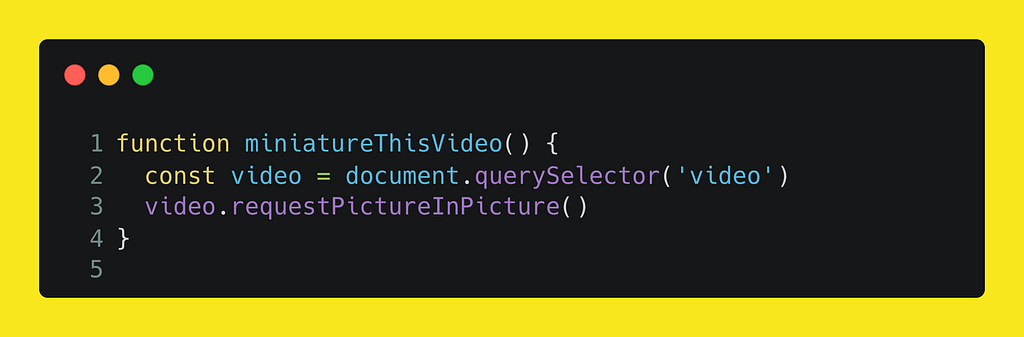
And that’s it, the video will be displayed in your browser’s corner!
For compatibility reasons, you can check if the API is available before executing code:
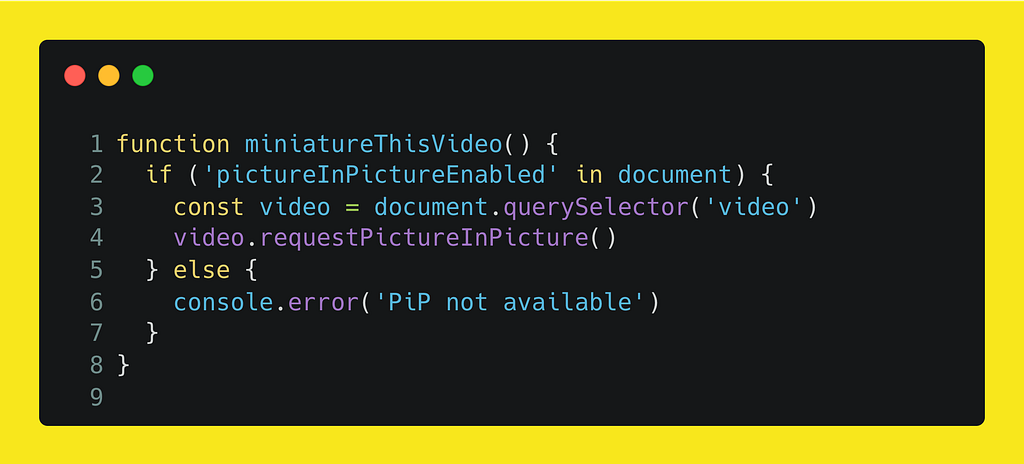
Much simpler, right?
In addition, you have events to track when you enter or leave the PiP mode, and a pseudo-element :picture-in-picture is added to the video when entered the PiP mode.
We can expect more in next versions, maybe extending this to other interactive content beyond videos, like controlling the position of the miniature. Who knows?
Conditions in CSS
CSS continues to evolve by introducing features that reduce the need for preprocessors. We already have custom properties and nesting, and in the near future we may also see conditional styles with if().
How many times have we asked ourselves
How can I write conditional code in CSS?
Previously, we could use some hacks with calc(), but let’s be honest, it was just tricks (and I’m sure they are other ways to do it).
That’s the purpose of the new css draft that can be tracked here.
As of July 1st, 2025, the feature is available for experimentation in Chrome version 137.
So, what does it look like?
In my example, I have three paragraphs:
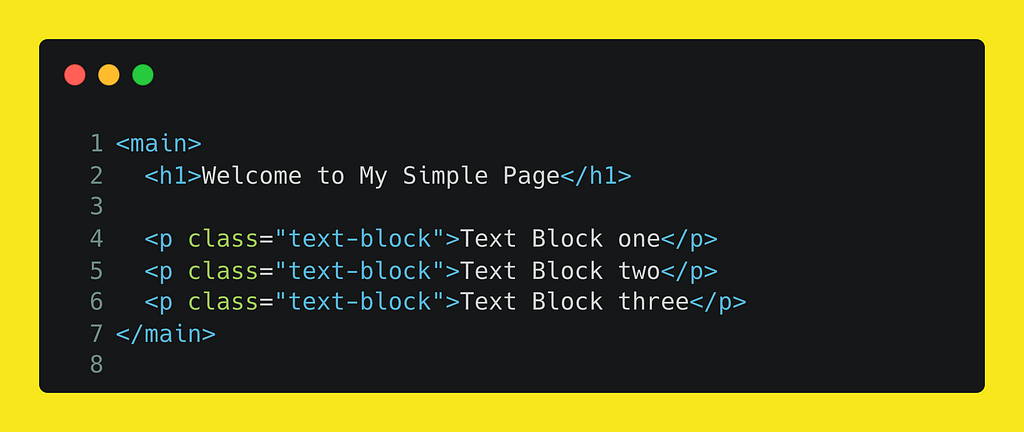
Depending on the element, I’ll set a CSS custom property value and add an if condition on it (it’s just a showcase 😛).
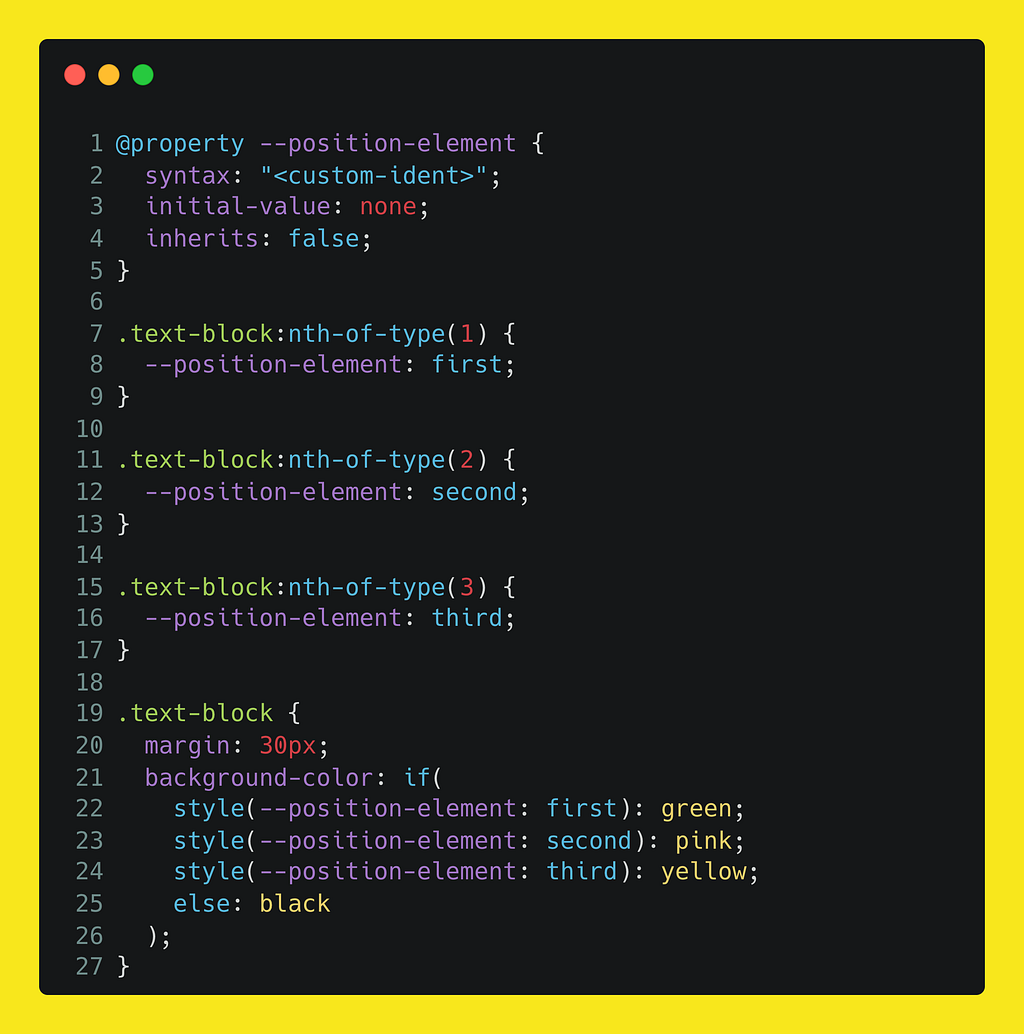
The new if() is a function where you can pass a list of condition/value pairs, and optionally finish with an else statement.
For now, you can only test these queries:
- Style queries with style()
You can test any style and then return a specific value
- Media queries with media()
Depending on media element (the size or any media-dependend elements)
- Feature queries with supports()
You can test features from the browser and if not available, ensure some fallback values
The real question now:
Is the if() supposed to replace the media queries?
The answer is no. It’s just a more convenient way to write conditional stuff when you don’t want to write a whole block of styles (maybe just for a single property). But in the end, both are doing the same thing.
Conclusion
I hope you enjoyed the overview of these features. The web ecosystem is constantly evolving, and you may have other in minds. Please feel free to share you favorites.
Some links
- Some thoughts on CSS if() function: https://lea.verou.me/blog/2024/css-conditionals/
- CSS Working group discussion for if(): https://github.com/w3c/csswg-drafts/issues/10064#issuecomment-2165157958
- Free video’s url to use for webdev experiments: https://gist.github.com/SeunghoonBaek/f35e0fd3db80bf55c2707cae5d0f7184
- State of interop 2025: https://wpt.fyi/interop-2025
- The 2025 CSS Snapshot: https://drafts.csswg.org/css-2025/
For more updates, visit ekino’s website and follow us on LinkedIn.
What’s Next: 4 WebDev Features Defining Modern Development was originally published in ekino-france on Medium, where people are continuing the conversation by highlighting and responding to this story.
Articles



Un projet ?
Parlez-nous de vous, de vos projets, de vos ambitions, de vos enjeux, et construisons ensemble des solutions concrètes qui contribuent à votre transformation.